

Welcome to SlideAdmin! We're going to show you how to turn a document into slides.
Step 1: Install and access the SlideAdmin Add-on from the Google Workspace Marketplace
See How to install and access the Google Workspace Marketplace Add-on for how to do this.
Step 2: Customize presentation appearance settings
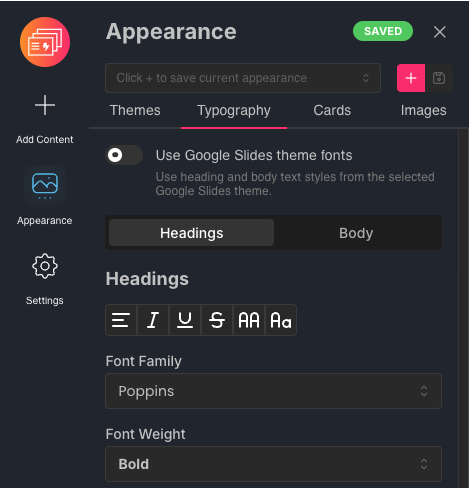
Customize text styles, themes and more in Appearance settings. Any changes you make will be immediately reflected in the slide previews.
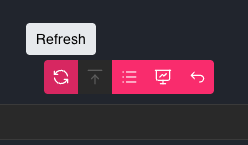
Every time you make a change in the document, click the Refresh button to update the slide previews.
Step 3: Present with Web Slides or generate linked Google Slides file
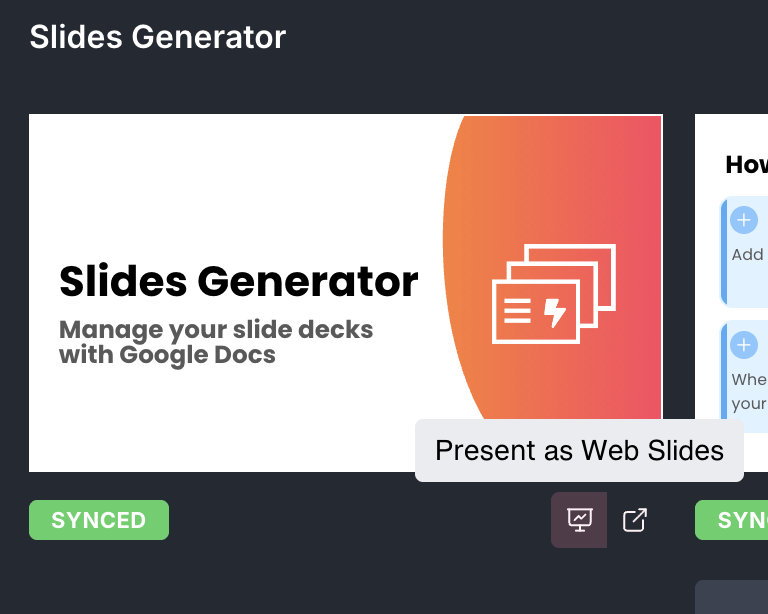
Once you're happy with the way your slides look, you can either Present as Web Slides.
To export a linked Google Slides file, click Generate.

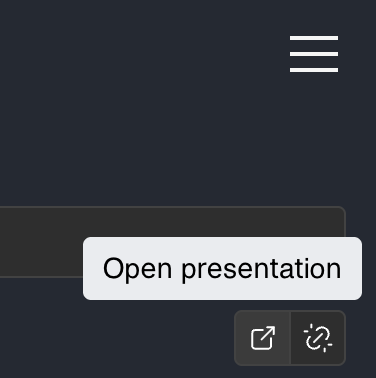
Once your slides are generated, access the Google Slides presentation from the Open presentation button. Each generated presentation will have its own button.
The linked presentation only needs to be generated the first time. After that, you can sync document updates to linked presentation either by syncing a single slide or all slides.