
SlideAdmin maps the structure of your Google Doc to slide layouts automatically. Here's how to control which layout you get.
Tip: Every layout has a shortcut available via Add Content → Layouts — so you don't have to remember the formatting rules if you don't want to.
Adding a New Slide
There are two ways to tell SlideAdmin to start a new slide:
- Blank line — any content after one or more blank lines appears on a separate slide.
- Heading paragraph — setting a Heading style always starts a new slide, even without a blank line before it.
Title Slide
The Title layout is used for the opening slide of a presentation. It supports a title, subtitle, and image.
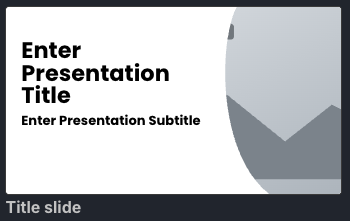
- Title — insert a Title paragraph.
- Subtitle — optionally add a Subtitle paragraph immediately below.
- Image — optionally add an image immediately below the subtitle.
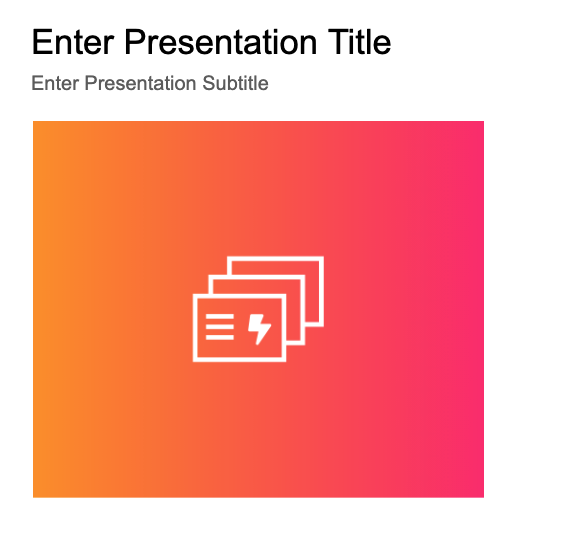
A Title paragraph also marks the start of a new presentation. SlideAdmin supports multiple presentations from a single Google Doc — each Title starts a new one.
Section Header
The Section Header layout is used to divide a presentation into distinct sections. It can include one or more images positioned to the left, right, top, bottom, or behind the heading as a full-slide image.
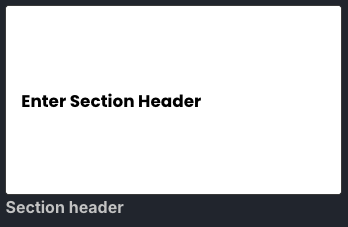
Insert a Heading 1 paragraph followed by an optional image or group of adjacent images, with a blank line after the block. Use the toolbar or Ctrl+Alt+1.

Title and Body
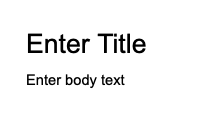
The Title and Body layout displays a slide heading with body text below it.
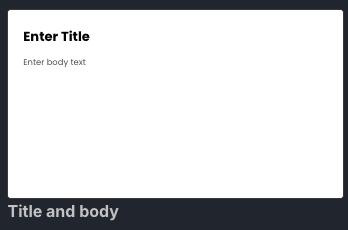
Insert a Heading 1 paragraph with a blank line before and after, then add your text directly below it. Use the toolbar or Ctrl+Alt+1.
Title and List Items
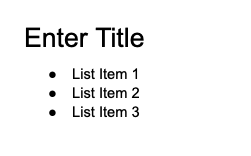
The Title and List Items layout displays a slide heading with bullet points below it.
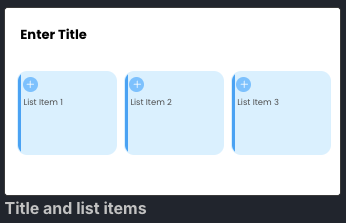
Insert a Heading 1 paragraph, then add a bulleted list immediately below it.
Title and Subsections
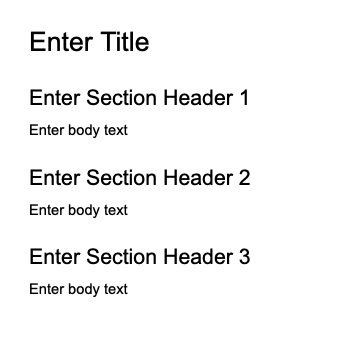
The Title and Subsections layout displays a slide heading with nested subheadings below it.
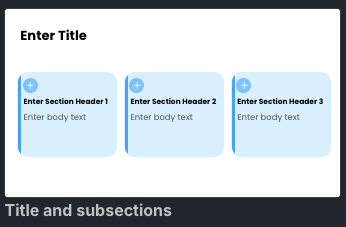
Insert a Heading 1 paragraph, then add one or more Heading 2 paragraphs immediately below it.
Title and Image Cards
The Title and Image Cards layout turns an image-led content block into a responsive card grid. Each image starts a new card. A Heading 2 and Normal text paragraph can optionally follow the image to provide its subheading and description.
Use this order in Google Docs™:
- Add a Heading 1 for the slide title.
- Insert the first image.
- Optionally add a Heading 2 and Normal text.
- Repeat the image, optional Heading 2, and optional Normal text sequence for each additional card.
Card images support rectangle, rounded rectangle, circle, triangle, hexagon, pentagon, diamond, parallelogram, heart, star, and cloud masks. Choose a mask under Appearance → Images → Mask.
Main Point
The Main Point layout is used to highlight a key point or takeaway. It can contain multiple adjacent Normal text paragraphs and one or more images directly after them.
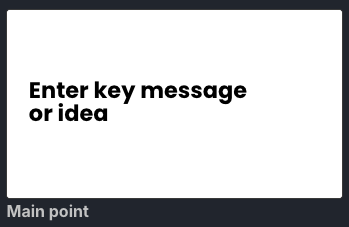
Insert one or more Normal text paragraphs, optionally followed by adjacent images, with a blank line before and after the block. Use the toolbar or Ctrl+Alt+0.
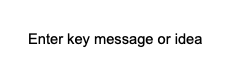
Image Slides
SlideAdmin transfers inline images from Google Docs™ into available image placeholders in Slides™.
A note on themes: Image placement can vary between Google Slides™ themes. SlideAdmin handles this by letting you select your theme upfront before generating — so images land correctly regardless of which theme you're using.
Title, List Items and Image
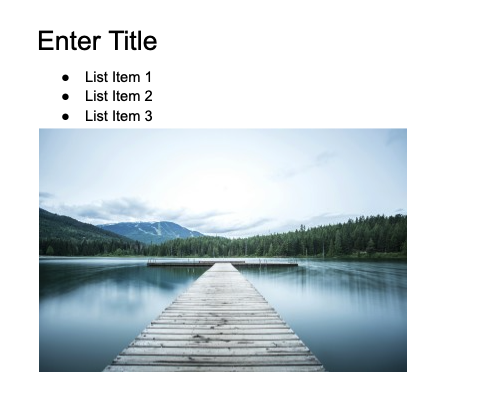
The Title, List Items and Image layout displays a heading and bullet points alongside an image.
Select the image in the slide preview to position it to the left, right, top, or bottom of the content.
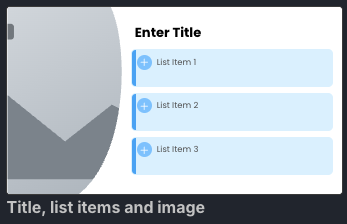
Insert a Heading 1 paragraph, add a bulleted list immediately below it, then add an image immediately after the list.
Title, Subsections and Image
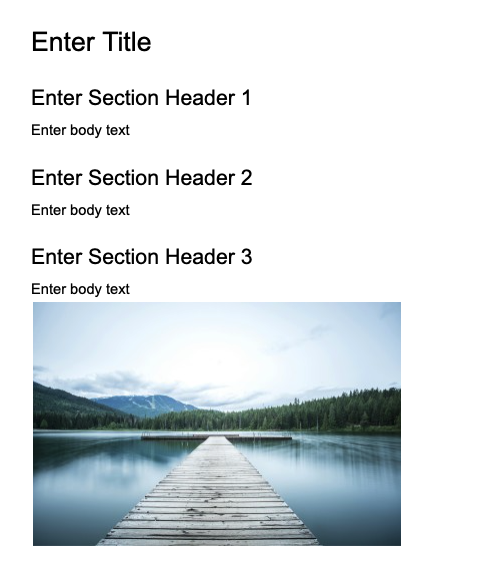
The Title, Subsections and Image layout displays a heading and subheadings alongside an image.
Select the image in the slide preview to position it to the left, right, top, or bottom of the content.
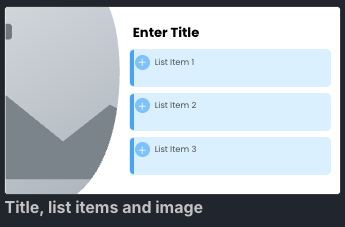
Insert a Heading 1 paragraph, add one or more Heading 2 paragraphs immediately below it, then add an image immediately after the subheadings.
One-Column Text with Image
The One-Column Text with Image layout places an image to the left, right, top, or bottom of a block of text. Select the image in the slide preview to change its position.
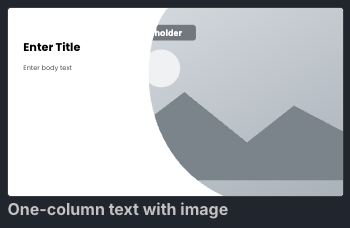
Add an image immediately after a block of text. The slide heading is optional.
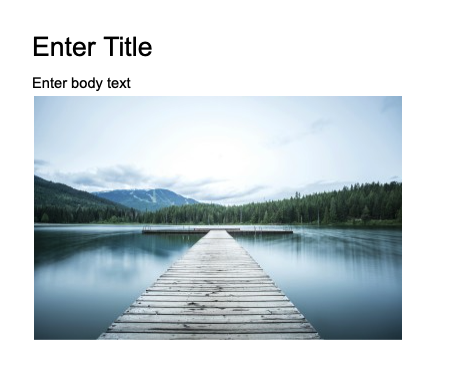
Image with Caption
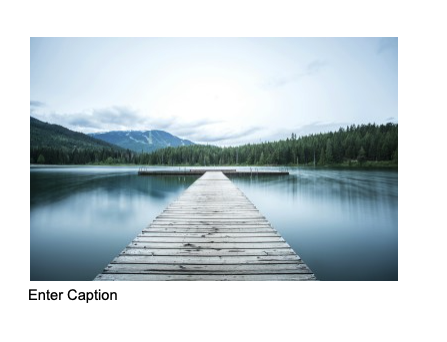
The Image with Caption layout places a short caption below the image.
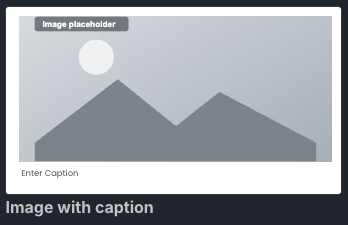
Add an image followed immediately by a single short line of text.
Full Image
The Full Image layout fills the entire slide with an image.
Add an image with a blank line above and below it.

Video Slides
YouTube links in your Doc are automatically converted to video slides. Only YouTube links are supported at this time.
The same theme note applies here — select your theme upfront and SlideAdmin handles video placement correctly.
Video with Title
The Video with Title layout places a video below a slide heading.

Add a YouTube link immediately below a slide heading.
Full Video
The Full Video layout fills the entire slide with a video.

Add a YouTube link with a blank line above and below it.

Tables
Tables are transferred from Google Docs™ to Slides™ automatically, including text formatting within each cell.
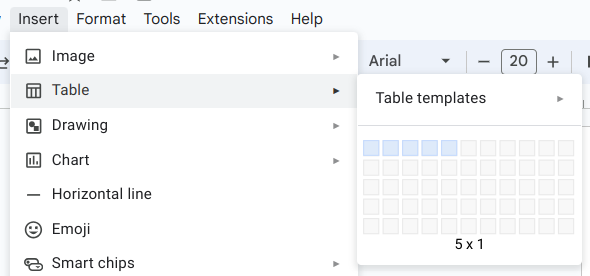
To insert a table: Insert → Table.