

Synced Docs helps you view and manage Google Docs that are connected to SlideAdmin sync workflows.
Open Synced Docs
Open SlideAdmin, then open Synced Docs from the menu.
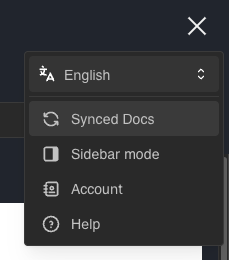
The Synced Docs screen will appear.
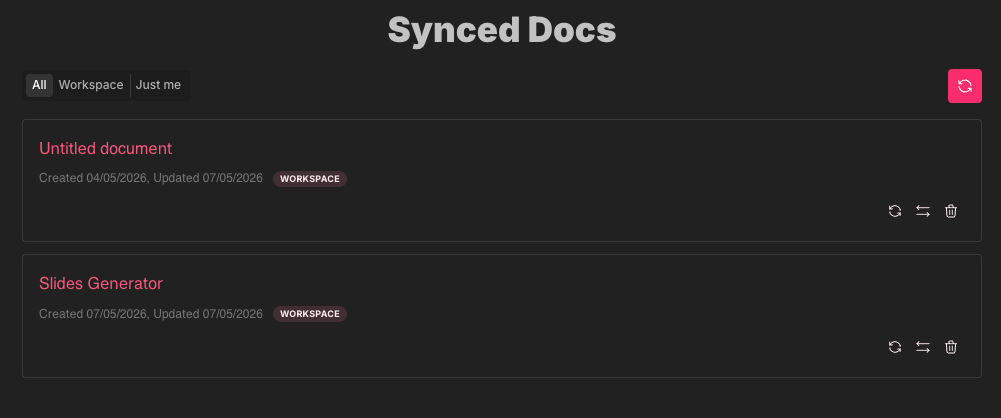
Filter by visibility
Use the visibility filter to view:
- All
- Workspace
- Just me
This helps you quickly focus on documents shared with your team vs personal records.
Refresh document titles
Use:
- Refresh title on one row, or
- Refresh all titles for the current filtered list
This is useful when source document titles changed in Google Docs™.
Change visibility
For rows where you have permission, change visibility between Workspace and Just me.
Use this to control whether a synced doc record is shared across your workspace.
Delete a synced doc record
Delete removes the synced-doc record.
Important:
- This does not delete the source Google Doc™.
- This does not delete existing Google Slides™ files.
- It removes the saved sync record metadata.